A video bar is an all-in-one device that combines a camera, microphones, speakers, and video conferencing technology for simpler hybrid meetings. This guide explains how to choose the right video conferencing bar based on your meeting room size, camera and audio needs, Zoom or Microsoft Teams compatibility, BYOD options, and IT management requirements. The best video bar is one that helps every participant be clearly seen and heard while remaining easy to install, use, and support.
A video bar combines a camera, microphones, speakers, and video conferencing technology in one compact device. For organizations replacing older meeting room equipment, building new collaboration spaces, or improving hybrid meetings, an all-in-one video bar can simplify both installation and everyday use.
The terms video conferencing bar, all-in-one video conferencing bar, and video and audio conferencing bar are often used for the same general product category. In this guide, “video bar” refers to an integrated meeting-room device that brings together video capture, voice pickup, speaker output, and conferencing connectivity. Video conferencing bars vary widely, however, so buyers should evaluate the complete room experience rather than assume that every all-in-one system performs the same way.
However, choosing the right video bar involves more than comparing camera resolution. Room size, seating layout, microphone pickup range, platform compatibility, wireless collaboration, device management, security, support, and total cost of ownership can all affect whether the system performs well after deployment.
This guide explains how video bars work, which meeting rooms they suit, what features matter, and how IT teams, procurement managers, and meeting room users can evaluate the right solution.
Across the category, four trends now shape most buying decisions: AI-assisted camera and audio features, flexible deployment modes, room-size-specific hardware, and centralized device management. These capabilities can make meetings easier to operate, but they also create new questions about software support, privacy, interoperability, and long-term maintenance.
What Is a Video Bar?
A video bar is an all-in-one video conferencing system designed for meeting rooms. It usually integrates a camera, microphone array, speakers, audio processing, connectivity, and sometimes a built-in operating system or conferencing codec.
In practical terms, a video conferencing bar is both a video and audio conferencing device. The camera captures the room, the microphone array picks up participants, the speakers play remote voices, and the software or connected computer links the room to a meeting platform. This integration is what separates a true video bar from a standard soundbar or a standalone conference camera.
Instead of installing a separate conference camera, speakerphone, microphone system, and room computer, an organization can use one device mounted above or below the display.
This simplified design can reduce cabling, installation time, support requirements, and user confusion.
How an All-in-One Video Bar Combines Camera, Microphones, Speakers, and Conferencing Technology
A typical video bar includes several components:
- A wide-angle or zoom camera
- Built-in microphones
- Integrated speakers
- Echo cancellation and noise reduction
- USB, HDMI, network, or wireless connectivity
- AI-based framing or tracking
- Support for conferencing platforms
- Remote device management features
Some devices operate as USB peripherals connected to a laptop or room computer. Others function as complete room systems with built-in software for Microsoft Teams Rooms, Zoom Rooms, Google Meet, or other conferencing platforms. Larger-room designs may use multiple camera views or a dual-lens video bar architecture, combining a wide room view with a tighter view for clearer participant framing. Buyers should confirm how those views operate in USB, BYOD, BYOM, and native-room modes.
The best design depends on how the meeting room will be used. A company that standardizes on one conferencing platform may prefer a native room system. An organization that frequently joins meetings across different platforms may prefer USB, BYOD, or BYOM flexibility.
Most current systems fall into three operational models:
- USB/BYOD/BYOM Video Bars: Plug-and-play peripherals that connect to a PC/laptop (e.g., AVer VB150, VB342 Pro, VB350).
- Native All-in-One Appliances: Independent systems with a built-in OS (e.g., AVer VB370A).
- Dedicated room-computer mode: The video bar connects to a permanently installed computer that runs the room software.
Before selecting a model, IT teams should confirm which modes are supported, whether switching between them is simple, and whether each mode requires separate licenses, controllers, cables, or management tools.
A modern video bar is easily connected to computers, driving seamless workplace collaboration. Some video bars even have in-built mini computers, running Android or other operating systems, working in tandem with high-grade CMOS sensors to handle heavy-lifting, hardware-level codecs and video conferencing codecs instantly. This immense processing power, paired with AI-powered processing capabilities and state-of-the-art AV tech, ensures that your next video call or cloud video call feels incredibly lifelike. Whether your IT department prefers dedicated, all-in-one Video bars or the plug-and-play flexibility of USB Video Bars, this tightly integrated architecture offers incredible versatility for any office setup.
Video Bar vs. Conference Camera and Traditional AV Systems
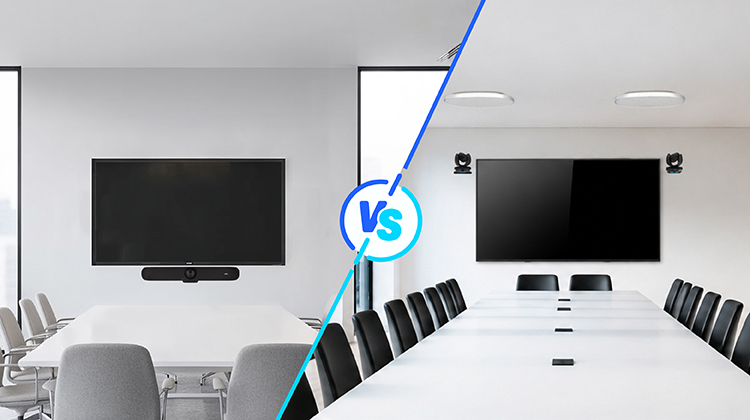
A conference camera mainly captures video. It normally requires separate microphones, speakers, and a computer.
A video bar integrates most or all of those functions into one product. Some higher-capability models are designed as a PTZ video bar, using pan, tilt, and zoom functions to improve coverage in medium or large rooms. This can bridge the gap between a fixed-lens video bar and a fully modular PTZ camera system.
A traditional modular AV system uses separate cameras, digital signal processors, ceiling microphones, amplifiers, speakers, control panels, and room computers. Modular systems can offer more flexibility for complex spaces, but they usually require more installation, configuration, and maintenance.
A video bar is often the better choice when the organization wants:
- Faster deployment
- Fewer cables
- Easier user operation
- Consistent meeting room standards
- Lower support complexity
- Predictable installation requirements
A modular AV system may be more suitable for auditoriums, very large boardrooms, divisible rooms, or spaces with advanced audio and camera requirements.
Why Businesses Choose All-in-One Video Conferencing Solutions
Organizations often move to video bars because older meeting rooms contain too many independent devices. Employees may need to turn on a display, connect a laptop, select the correct microphone, switch the camera source, and troubleshoot audio before the meeting begins. An all-in-one video bar can reduce these steps.
For IT teams, the value is easier standardization. For office managers, the value is simpler procurement and installation. For employees, the value is a more predictable meeting experience.
After reviewing this section, organizations should decide whether they need a USB video bar, a native room system, or a modular AV solution.
Which Meeting Rooms Are Best Suited for a Video Bar?
Video bars can support a wide range of meeting spaces, but room dimensions and seating layout matter more than the room name alone.
A six-person narrow room may require different camera coverage than a six-person wide room. A twelve-person boardroom may need stronger zoom and microphone expansion than a flexible training space with movable tables.
Video Bars for Huddle Rooms and Small Meeting Rooms
Huddle rooms usually support two to five people. Small meeting rooms may support four to eight people.
These spaces often benefit from:
- A wide field of view, due to shorter distance between camera and attendees
- Short microphone pickup requirements
- Simple USB or native platform operation
- Compact mounting
- Wireless content sharing
- Fast meeting startup
In a small room, an extremely powerful zoom lens may be unnecessary. The priority is usually capturing everyone seated close to the display without visual distortion.
A USB video bar can work well when employees bring their own laptops. A native room system may be better when the company wants one-touch meeting join and a consistent interface.
For a small office, the best all-in-one video conferencing bar is usually not the model with the longest feature list. It is the one that fits the room width, captures everyone seated close to the display, provides clear pickup at normal speaking volume, and can be used without on-site technical help. Small organizations should also compare the total package — including the controller, mount, cables, software licenses, warranty, and remote support — rather than judge value by the video bar alone.
Because product availability and software support change over time, buyers looking for the best video conferencing bars in 2026 should confirm current platform certification, update policies, supported operating systems, and lifecycle commitments directly with the manufacturer or an authorized partner.
*Recommended Products: AVer *VB150
Video Bars for Small-to-Medium and Medium Conference Rooms
Small-to-medium rooms often support six to ten people. Medium meeting rooms may support eight to twelve people.
These rooms require closer attention to:
- Camera field of view
- Digital or optical zoom
- Microphone pickup distance
- Table length
- Expansion microphone support
- Speaker volume
- AI framing accuracy
A common problem occurs when the front participants appear large while people at the back of the table appear too small. AI framing, also called intelligent camera framing, may improve composition, but the camera still needs sufficient optical and sensor performance.
Before selecting a product, measure the distance from the camera to the farthest participant. Also consider whether participants sit along both sides of the table or mainly face the display.
Medium rooms also benefit from products that can scale. Expansion microphones, additional speakers, and dual-display support can help a room handle occasional larger meetings without requiring a complete redesign. Buyers should verify the maximum supported accessories and whether all functions remain available in both native and USB operating modes.
As companies aggressively push to improve the quality of hybrid meetings, outfitting these spaces takes careful planning. A standard Medium Room — or even those tricky medium to large rooms — requires video bars that can gracefully bridge the gap between in-person and remote participants. These dynamic meeting spaces demand systems that can scale up seamlessly, ensuring nobody feels left out of the conversation simply because they are sitting further back from the screen.
*Recommended Products: AVer *VB342 Pro
Video Bars for Large and Extra-Large Meeting Rooms
Large conference rooms, boardrooms, and extra-large collaboration spaces may support more than twelve people.
A single video bar may still work in some large rooms, especially when it offers:
- Optical zoom
- Expansion microphones
- External speaker support
- Dual-display support
- Advanced tracking
- Flexible control options
However, organizations should not assume that a higher-priced video bar will automatically solve every large-room problem.
Long rooms can create weak microphone coverage at the far end. Wide rooms can place participants outside the camera’s useful framing area. Rooms with glass walls and hard surfaces can create echo. Boardrooms may also require multiple cameras or dedicated microphones.
For these spaces, a proof-of-concept test is more valuable than relying only on a specification sheet.
Large-room video bars often use more advanced optics, multiple camera views, stronger speaker systems, larger microphone arrays, or even expansion peripherals. Even so, integrated hardware has physical limits. If the room must cover more than one presentation area, support divisible layouts, or provide consistent pickup across a very long table, a modular AV design may offer better control and reliability.
*Recommended Products: *VB350*, *VB370A
Video Bars for Offices, Boardrooms, Education, and Hybrid Workspaces
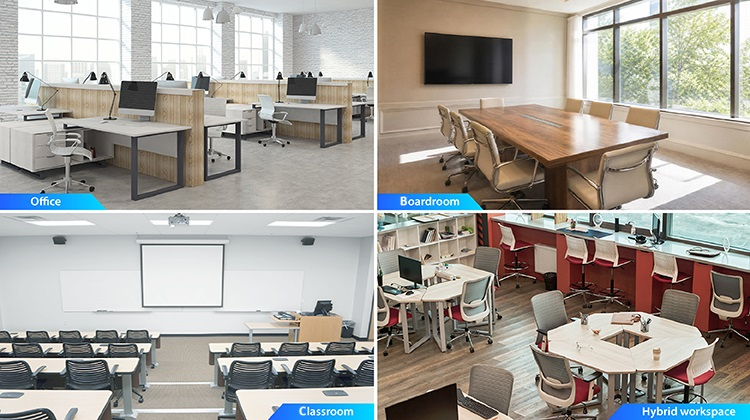
Video bars are not limited to corporate conference rooms. They can also support:
- Classrooms
- Training rooms
- Healthcare consultation rooms
- Government meeting spaces
- Hybrid offices
- Executive boardrooms
- Remote presentation studios
- Collaboration areas with digital whiteboards
- Lecturing spaces with complex layout needs
The required features vary by use case. A classroom may need presenter tracking. A healthcare environment may prioritize privacy and reliability. A government meeting room may require security and platform control. A boardroom may require premium camera performance and dual displays.
Particularly in modern education and corporate training, universities and enterprises are rapidly upgrading their specialized Lecturing spaces. In these environments, a video bar doesn't just need to sit still; it needs to intelligently track a professor or trainer pacing back and forth across a whiteboard, keeping remote students fully engaged without a human camera operator.
After identifying the room type, create a room profile that includes capacity, dimensions, table layout, platform, display count, and primary meeting activities.
How to Choose the Right Video Bar
Room capacity is a useful starting point, but it should not be the only selection criterion.
Choose by Number of People and Seating Distance
Start by recording:
- Maximum number of participants
- Normal number of participants
- Distance to the farthest seat
- Width of the seating area
- Table shape
- Camera mounting location
The farthest participant must remain visible and audible. If the microphone pickup range does not cover the entire table, consider expansion microphones or a modular audio solution.
Choose by Camera Field of View and Zoom Capability
A wide field of view helps capture people seated close to the camera. However, an extremely wide image can make distant participants appear small.
Optical zoom is useful in medium and large rooms because it preserves more image detail than digital enlargement.
When comparing camera specifications, review:
- Horizontal field of view
- Optical zoom
- Digital zoom
- Resolution
- Low-light performance
- Auto framing
- Speaker tracking
- Presenter tracking
Do not evaluate these features only in a showroom. Test them from the actual mounting position whenever possible.
What Camera, Audio, and AI Features Should a Video Bar Include?
Product pages often list many features, but the practical question is whether those features solve actual meeting problems.
4K Camera, Wide Field of View, and Optical Zoom
A 4K camera can provide more detail, but resolution alone does not determine image quality.
Lens quality, sensor size, exposure, lighting, framing, and zoom performance also matter.
A 4K camera is especially useful when the system crops the image for AI framing. The additional resolution can help preserve detail after digital reframing.
For small rooms, field of view may matter more than optical zoom. For large rooms, zoom and image detail become more important.
As a general reference, many small-room systems use a wide field of view of roughly 100 to 120 degrees so people seated near the display remain visible. Some panoramic designs extend close to 180 degrees for very wide seating layouts. Medium and large rooms may use narrower primary views together with optical or hybrid zoom to keep distant participants recognizable.
These numbers should be treated as starting points, not guarantees. A wide field of view can create edge distortion, while heavy digital zoom can reduce detail. Buyers should review sample footage from the intended mounting position and lighting conditions.
It's also crucial to remember that beyond mere megapixel counts, true video resolution relies heavily on brilliant optics. A high-definition camera is only as good as the physical glass in front of its sensor. Premium optics capture sharper, more lifelike details and handle challenging conference room lighting far better than a basic plastic lens ever could.
AI Auto Framing, Speaker Tracking, and Presenter Tracking
AI auto framing, often described as smart framing, adjusts the view to include participants. Speaker tracking focuses on the active speaker. Presenter tracking follows someone moving around the room.
These features can improve hybrid meeting participation, but they should be evaluated carefully. Effective camera automation should support the meeting rather than call attention to itself. Buyers should look for smooth transitions, sensible framing behavior, and controls that allow users or administrators to select a fixed view when automatic movement is not appropriate.
Questions to test include:
- Does framing react too slowly?
- Does the camera move too often?
- Can it distinguish between participants and images on a display?
- Does it handle multiple speakers?
- Can tracking be disabled when a fixed view is preferred?
- Does presenter tracking work near a whiteboard?
For executive meetings, frequent camera movement may be distracting. For training rooms, tracking may be highly valuable.
More advanced systems may combine several AI views at once — for example, a wide room view plus individual participant or active-speaker framing. This can make remote attendees feel more included, but IT and workplace teams should review how the system handles privacy, camera movement, on-screen participant images, and people entering or leaving the room.
Behind the scenes, these capabilities are driven by advanced AI algorithms and robust processing power. In everyday terms, these adaptive video enhancement technologies run quietly in the background, empowering users with AVer's proprietary AI-driven camera features. Whether utilizing Auto Framing to instantly capture everyone at the table, deploying Smart Gallery and Smart Composition to dynamically adjust the layout for equal visibility, or relying on precise Voice Tracking (Speaker Tracking & Presenter Tracking) to seamlessly keep the focus on whoever is holding the floor, these on-device AI technologies make the meeting feel naturally produced.
AI features should also be tested after software updates. Framing behavior can change over time, so organizations should document preferred settings and include camera behavior in their acceptance tests.
Beamforming microphones focus on sound from specific directions. This can improve voice pickup and reduce distracting background noise.
However, performance depends on distance, room acoustics, and speaker position.
The integrated speaker should also provide enough volume without creating echo or feedback. In larger rooms, external audio may still be required.
Some systems use multiple digital microphones to create adaptive pickup beams that follow talkers around the table. Others use a defined pickup zone — sometimes called an acoustic boundary or audio fence — to reduce voices and noise from outside the meeting area. These functions can be useful in open offices, but they should be tested with quiet speakers and people seated near the edge of the intended coverage zone.
To truly replicate the feeling of being in the same room, modern audio design relies on a high-grade microphone array paired with advanced noise suppression. Together, these components deliver powerful audio that easily cuts through distracting paper shuffling or keyboard typing. And if you are outfitting a longer boardroom table, simply adding officially supported expansion microphones ensures even the quietest voices at the far end of the room are captured with crystal clarity.
Noise Suppression, Echo Cancellation, and Full-Duplex Audio
Noise suppression can reduce keyboard sounds, air conditioning, and other background noise.
Echo cancellation prevents remote participants from hearing their own voices returned through the room speakers.
Full-duplex audio allows both sides to speak at the same time without one side being muted.
These features are particularly important during active discussions. A system that performs well during a quiet product demonstration may behave differently when several people interrupt one another.
Heating, ventilation, and air-conditioning systems are another common source of unwanted audio. To reduce HVAC noise picked up by a video conferencing bar, first check whether the device offers adjustable noise suppression, microphone gain, or beamforming settings. Then inspect the room: avoid mounting the bar directly below an air vent, placing expansion microphones in moving airflow, or allowing mechanical vibration to travel through the display mount or furniture.
Test each change with a remote participant. Aggressive noise suppression or very low microphone sensitivity may reduce fan noise but can also make quiet or distant speakers harder to understand. If settings alone do not solve the problem, the room may need HVAC maintenance, a different microphone position, or acoustic treatment.
When evaluating a video bar, conduct a realistic meeting test, and remember to include:
- People at the front and back of the room
- Multiple speakers
- Quiet speakers
- Participants turning away from the microphone
- A remote attendee using headphones
- Screen sharing
- Background noise
- A presenter moving near a whiteboard
The purpose is not only to confirm that the device works. The purpose is to confirm that remote participants can follow the conversation without repeatedly asking people to speak louder or move closer.
USB and Wireless Video Bar Connectivity
Connectivity affects both user experience and IT support.
USB Video Bars for BYOD Video Conferencing
A USB video bar connects to a laptop or room computer and functions as the camera, microphone, and speaker.
This model is useful when employees need to join meetings from different platforms.
Benefits include:
- Platform flexibility
- Familiar laptop workflow
- Lower dependence on one conferencing ecosystem
- Easy support for guest meetings
Potential limitations include:
- Users may need to connect a cable
- Laptop settings can cause errors
- Different operating systems may behave differently
- The room experience may be less standardized
Organizations should test how quickly a first-time user can connect a laptop, select the correct devices, share content, and leave the room ready for the next meeting.
USB video bars for conferencing should be tested with the same laptops and operating systems employees actually use. Confirm whether the connection is USB-A or USB-C, whether an adapter or external power supply is required, and whether the device works as a plug-and-play camera, microphone, and speaker without administrator access or extra drivers. For longer cable runs, ask whether an active USB extension or approved accessory is required.
With the ubiquity of modern USB-C connections, users today expect a flawless, driver-free Plug-and-play experience. This makes executing a true BYOD (Bring Your Own Device) strategy straightforward — employees simply walk into the room, plug a single cable into their laptop, and instantly take over the room's high-end camera and audio.
A useful acceptance test is simple: give a first-time user the room without instructions and observe whether that person can connect, select the video bar in the meeting application, share a screen, adjust volume, and disconnect cleanly. This exposes workflow problems that may not appear on a specification sheet.
Wireless Conferencing and Content Collaboration
Wireless conferencing allows users to connect without a USB cable. Wireless content sharing lets participants present screens or documents.
This can improve convenience, but IT teams should review:
- Network requirements
- Wireless security
- Guest access
- Software installation
- Latency
- Resolution
- Administrative controls
- Compatibility with managed devices
Wireless collaboration should simplify the meeting, not create another troubleshooting step.
Convenient features like wireless casting allow anyone to throw their presentation or spreadsheet onto the big screen in seconds, entirely bypassing dongles and adapters. IT leaders should also verify that the hardware they choose plays nicely with all major video conferencing platforms as well as broader workplace collaboration platforms, ensuring your team is never locked into just one way of communicating.
For organizations using several conferencing services, wireless BYOM can provide additional flexibility by allowing a laptop to use the room’s camera, microphones, speakers, and display without a direct USB connection. IT teams should verify whether this function requires a desktop application, network discovery, special permissions, or separate hardware, and whether guest users can connect without weakening network security.
Platform compatibility is one of the most important purchasing criteria.
Video bars may support platforms such as Microsoft Teams, Zoom, Google Meet, and Webex through native room operation, a dedicated room computer, or USB connectivity. Buyers should confirm whether a device is officially certified for the required platform and whether features such as one-touch join, calendar integration, content sharing, dual displays, and remote management remain available in each operating mode.
A platform-certified video bar has typically been tested against specific software and room-experience requirements. That can reduce compatibility risk, but certification does not automatically mean every feature works identically in native, USB, BYOD, and BYOM modes. IT teams should review the exact deployment they plan to use rather than rely on a general compatibility statement.
Microsoft Teams Rooms and Zoom Compatibility
Some video bars are certified for Microsoft Teams Rooms or Zoom Rooms. Certification can provide greater confidence that the device has been tested for the platform.
Buyers searching for a Zoom bar, Zoom video bar, or Teams video bar are usually looking for an all-in-one system that works with Zoom Rooms or Microsoft Teams Rooms. Compatibility may range from basic USB operation to a fully native room experience with calendar integration, touch controls, and one-touch meeting join.
A device that works as a USB camera, microphone, and speaker for Zoom or Microsoft Teams is not necessarily the same as a native Zoom Rooms video bar or Microsoft Teams Rooms video bar. Native operation may require a room account, platform license, approved controller, supported operating system, or dedicated compute device.
However, certification should not be the only consideration. Remember to review the following:
- Native meeting join
- Calendar integration
- Touch controller support
- Platform switching
- Guest meeting support
- Device management
- Software update policies
An organization standardized on Microsoft Teams may prefer a native Teams Rooms device. A company using several platforms may need BYOD or platform-switching flexibility.
Organizations should also test how the room handles meetings hosted outside the primary platform. A Microsoft Teams room may still need to join a Zoom meeting, while a Zoom Rooms deployment may need to support Microsoft Teams or Webex calls. Guest-join features, laptop-based fallback options, and calendar interoperability can determine whether that cross-platform experience is simple or frustrating.
Organizations using Google Workspace should verify whether the video bar supports native Google Meet operation or functions only as a USB device.
A Google Meet video bar may run the platform natively, connect to a dedicated room computer, or operate as a USB peripheral for a laptop. These approaches can look similar during a demonstration but create different requirements for licensing, controllers, device management, and user sign-in.
The same evaluation applies to Webex and other certified conferencing platforms. Buyers should confirm which features are available today, which require optional hardware or subscriptions, and whether the system can support future platform changes without replacing the complete room setup.
The same applies to other conferencing services.
Check whether platform support requires:
- Additional hardware
- Separate licenses
- A room computer
- A specific controller
- A software subscription
- A platform-specific operating mode
Native Room Systems vs. BYOD and BYOM
A native room system runs the meeting platform directly on the device or an integrated room computer.
A native Zoom Rooms or Microsoft Teams Rooms video bar can provide a standardized interface, calendar-based meeting access, and one-touch join. This approach is often useful for organizations that want every room to work the same way and do not want users to depend on a personal laptop.
A multi-platform video bar may instead rely on BYOD or BYOM. BYOD lets users bring their own laptop and connect it to the room hardware. BYOM lets users bring their preferred meeting application while using the room’s camera, microphones, speakers, and display. Wireless BYOM can remove the direct USB cable, but it may introduce additional network, software, and security requirements.
Native systems offer consistency. BYOD and BYOM offer flexibility.
Many organizations benefit from a hybrid approach that supports native meetings for the primary platform and laptop-based meetings for external calls.
Before approving a hybrid deployment, test the transition between modes. Users should be able to switch from the native room experience to a laptop-based Zoom, Microsoft Teams, Google Meet, or Webex meeting without changing multiple settings or leaving the room in an unusable state for the next person.
Certification can reduce compatibility risk, but buyers should still confirm whether every required feature works in each operating mode. Camera presets, dual displays, content sharing, expansion microphones, remote management, and guest meeting access may behave differently when the same hardware switches between native, USB, and room-computer configurations.
Video Bar Installation and Everyday User Experience
Installation decisions affect the final experience.
Wall-Mount, Display-Mount, and Tabletop Installation
A video bar can be installed above or below the display, mounted to a wall, attached to a display, or placed on furniture.
The camera should provide a natural eye-level view. Mounting too high may create an overhead perspective. Mounting too low may cause the table to block participants.
Privacy should also be considered during installation. Depending on the device, a physical camera privacy cover or electronic privacy control can help users confirm when video is intentionally blocked, particularly in shared or sensitive meeting spaces.
Also consider service access. IT teams should be able to reach cables, reset controls, and power connections without removing the entire display.
A neat, professional-looking setup ultimately comes down to smart product design and flexible mounting options. High-quality video bars typically utilize universal VESA mounting standards, giving your AV installers the freedom to position the device securely exactly where it looks and performs best—whether that's cleanly hovering below a screen or wall-mounted above the credenza.
Equipment, Cables, and Devices Needed for Deployment
Depending on the system, a room may also require:
- One or two displays
- A touch controller
- A room computer
- Network connection
- HDMI cables
- USB cables
- Expansion microphones
- Mounting accessories
- Power outlets
- Wireless presentation software
Create a complete bill of materials before comparing prices. A video bar with a lower device price may require more accessories, licenses, or installation work.
The bill of materials should also identify which items are required for each deployment mode. A system that works as a simple USB peripheral may need a controller, room license, compute unit, or additional network connection when used as a native room system. Separating required, optional, and future-expansion components makes total cost comparisons more accurate.
One-Touch Meeting Join and Simple Room Controls
For everyday users, the ideal room should answer three questions immediately:
- How do I start the meeting?
- How do I share my screen?
- How do I control the camera and audio?
A one-touch join experience reduces delays. Clear room controls reduce support calls.
To dramatically elevate the user experience, pairing the system with an intuitive touch control panel or a dedicated tabletop touch controller is highly recommended. Instead of fumbling with a keyboard and mouse, users can walk in, glance at the schedule on the touch screen, and start their call with a single, stress-free tap.
Organizations should observe first-time users during testing. If they require verbal instructions, the workflow may still be too complicated.
How Can IT Teams Manage Video Bars Across Multiple Rooms?
Enterprise deployments require more than reliable hardware.
Remote Device Management and Monitoring
Remote device management can help IT teams view:
- Device status
- Camera and microphone health
- Network connection
- Software version
- Room availability
- Peripheral status
- Error alerts
This reduces the need for technicians to visit each room.
For enterprise IT teams, centralized remote management is non-negotiable. It allows an administrator sitting in New York to instantly push firmware updates, check microphone health, or remotely reboot a glitching device in London without ever dispatching a field technician.
A useful management platform should do more than show whether a device is online. IT teams should look for fleet inventory, room-level alerts, peripheral status, configurable settings, software rollout controls, usage data, and audit logs. Role-based access is also important so local support staff can troubleshoot rooms without receiving unrestricted administrator rights.
Firmware Updates and Technical Support
Review how firmware updates are delivered.
Important questions include:
- Can updates be scheduled?
- Can updates be tested on a small group first?
- Can the organization delay an update?
- Is rollback available?
- How long will the product receive updates?
- What support channels are available?
For organizations with many rooms, update management can significantly affect operational risk.
A staged update process is usually safer than updating every room at once. Organizations can begin with a test room, confirm camera, audio, controller, and platform behavior, and then expand the rollout in groups. The deployment record should identify the installed version, test results, rollback options, and the person responsible for approving the wider release.
Secure Access Control and Enterprise Security
Security evaluation should include:
- Device authentication
- Administrator permissions
- Encryption
- Network segmentation
- Secure boot
- Signed firmware
- Vulnerability management
- Privacy controls
- Camera and microphone indicators
- Remote access policies
Security claims should be supported by documentation, certifications, and clear update commitments.
In today’s landscape, robust corporate security is paramount. IT directors must look beyond basic functionality and demand enterprise-grade security features. This includes strict encryption for all data both in transit and at rest, as well as seamless identity verification through standard SAML SSO (Security Assertion Markup Language Single Sign-On) to ensure that only authorized personnel can access the backend management portal.
Ask vendors to explain how device identity, stored credentials, local data, and management traffic are protected. Relevant controls may include encrypted storage, encrypted communications, secure boot, signed software, administrator authentication, hardware-backed identity, and published vulnerability-response processes. Organizations should also confirm what meeting or usage data is collected and how long it is retained.
Standardized Deployment Across Offices and Workspaces
Standardization can lower support costs, but not every room needs the same device.
A practical standard may include:
- One model for small rooms
- One model for medium rooms
- A modular design for complex spaces
- A common controller interface
- A shared management platform
- Standard cabling and mounting requirements
This approach balances consistency with room-specific needs.
Standardization should include configuration as well as hardware. A room standard can define mounting height, default camera behavior, microphone levels, display layout, network settings, update windows, cable labeling, user instructions, and escalation procedures. This makes support more predictable when devices are deployed across multiple offices.
Video Bar Pros, Cons, and Alternatives
Pros and Benefits of an All-in-One Video Bar
Common benefits include:
- Simplified installation
- Fewer devices and cables
- Easier user operation
- Integrated camera and audio
- Faster room deployment
- Consistent room standards
- Remote management
- Lower support complexity
Cons and Limitations for Complex Meeting Rooms
Potential limitations include:
- Fixed camera position
- Limited microphone expansion
- Reduced flexibility in unusual rooms
- Dependence on one integrated device
- Platform restrictions
- Less customization than modular AV systems
A video bar is not automatically the best choice for every room.
Another tradeoff is concentration risk. When the camera, microphones, speakers, operating system, and room controls are integrated into one device, a single hardware or software issue can affect the entire meeting experience. Buyers should review replacement procedures, spare-unit strategy, warranty turnaround, and whether the room can temporarily operate through USB or another fallback method.
Video Bar Alternatives and Modular AV Systems
Alternatives include:
- USB conference cameras with speakerphones
- PTZ cameras with separate microphones
- Ceiling microphone systems
- Dedicated room computers
- Multi-camera AV systems
- Interactive displays with integrated conferencing
The right alternative depends on room complexity, budget, support resources, and required experience.
How to Choose the Best Video Bar Solution
Use a structured comparison rather than selecting based on one specification.
For many buyers, the phrase best video conference bar really means the best fit for a particular room and workflow. A small BYOD room may prioritize simple USB connectivity and a wide field of view. A native Microsoft Teams Rooms or Zoom Rooms space may prioritize one-touch join, platform certification, and controller support. A centrally managed enterprise deployment may place more weight on security, lifecycle support, staged updates, and remote monitoring.
There is no single best video conferencing bar for every organization. The best choice is the system that matches the room, meeting platform, support model, security requirements, and expected user behavior.
When comparing a video bar for Zoom, Microsoft Teams, Google Meet, or another platform, separate basic compatibility from the full room experience. Ask whether the system supports native operation, USB fallback, guest meetings, content sharing, dual displays, expansion microphones, and remote management in the exact mode the organization plans to deploy. A strong shortlist should therefore be organized by use case—such as small office, medium conference room, BYOD room, native platform room, or centrally managed enterprise deployment—before products are compared.
| Evaluation Area |
Questions to Ask |
| Can the camera and microphones cover every seat? |
| Does the system perform well with normal and maximum attendance? |
| Does it support the organization’s primary and guest meeting platforms? |
| Are field of view, zoom, framing, and low-light performance sufficient? |
| Can remote participants hear quiet and distant speakers clearly? |
| Does the room need USB, BYOD, BYOM, HDMI, or wireless sharing? |
| Can IT monitor, update, and troubleshoot the device remotely? |
| Does the product meet enterprise security and privacy requirements? |
| What mounts, displays, cables, controllers, and accessories are required? |
| What warranty, lifecycle, and service options are available? |
| What is the total cost of hardware, licenses, installation, and maintenance? |
| Can microphones, speakers, displays, or controls be expanded if room needs change? |
| How long will the hardware, operating system, and meeting applications receive support? |
Recommended next actions:
- Document room dimensions and layouts
- Define the primary meeting platform
- Create a shortlist by room size
- Compare complete system costs
- Request product demonstrations
- Conduct an in-room proof of concept
- Test with real remote participants
- Review management and security documents
- Confirm warranty and lifecycle support
- Build a phased deployment plan
- Run a pilot update before any fleet-wide software rollout
- Document a fallback process for room or platform outages
Frequently Asked Questions About Video Bars
What Is the Difference Between a Video Bar and a Soundbar?
A soundbar mainly provides audio. A video bar includes a camera, microphones, and speakers.
The phrase video conferencing sound bar is sometimes used informally for an all-in-one conferencing device, but buyers should check the actual specifications. A conventional soundbar may improve speaker output without providing a camera, microphone array, conferencing software, or USB connection.
A monitor light bar for video conferencing is also a different product. It is a lighting accessory placed above a desktop monitor to improve workspace or face lighting. It does not replace a video conferencing bar, although better lighting can improve how a person appears on camera.
Does a Video Bar Need a Computer?
Some USB video bars require a laptop or room computer. Native room systems may run conferencing applications directly without a separate user laptop.
Can a Video Bar Support Dual Displays?
Some systems support dual displays, while others require additional hardware. Confirm display support before purchase.
Is a Video Bar Good for a Large Conference Room?
A video bar can work in some large rooms, especially with optical zoom and expansion microphones. Very large or complex rooms may require a modular AV system.
How Many People Can a Video Bar Support?
Capacity depends on room dimensions, seating layout, camera coverage, and microphone range. Do not rely only on the manufacturer’s suggested participant count.
Measure the room, identify the farthest seat, confirm the meeting platform, evaluate camera and microphone coverage, and test the system in the actual space.
What Video Bar Specifications Do I Need?
Key specifications include field of view, zoom, resolution, microphone pickup range, audio processing, expansion support, platform compatibility, connectivity, management, and security.
Many video bars include enterprise security features, but capabilities vary. Review authentication, encryption, firmware policies, administrator controls, privacy settings, and support commitments.
Does a Video Bar Work with Zoom?
Yes, many video bars can work with Zoom through native Zoom Rooms operation, a dedicated room computer, or USB connectivity to a laptop. Buyers searching for a Zoom bar or Zoom video bar should confirm whether they need simple USB compatibility or a complete Zoom Rooms experience with calendar integration, one-touch join, a touch controller, and remote management.
Does a Video Bar Work with Microsoft Teams?
Many systems can support Microsoft Teams as a USB camera, microphone, and speaker, while others are designed for native Microsoft Teams Rooms operation. A Teams video bar or Microsoft Teams video bar may require a room license, approved controller, supported operating system, or additional compute hardware. Confirm the complete deployment requirements before purchase.
Can One Video Bar Support Both Zoom and Microsoft Teams?
Some video bars can support both Zoom and Microsoft Teams through BYOD, BYOM, USB connectivity, guest-join features, or platform-switching modes. However, the available camera controls, content sharing, dual-display support, expansion audio, and device management features may differ between modes. Organizations should test both platforms in the actual room before standardizing the system.
Final Video Bar Selection Checklist
Before approving a video bar purchase, confirm that the solution:
- Covers every participant visually and audibly
- Supports the required meeting platforms
- Offers the correct balance of native operation and BYOD flexibility
- Can be installed without unnecessary room modifications
- Is easy for first-time users
- Supports remote device management
- Meets security and privacy requirements
- Includes appropriate warranty and technical support
- Can be standardized across similar rooms
- Has been tested in a realistic meeting scenario
The best video bar is not simply the product with the highest camera resolution or the longest feature list. It is the solution that fits the room, supports the organization’s workflow, reduces support effort, and creates a reliable experience for both in-room and remote participants.
References