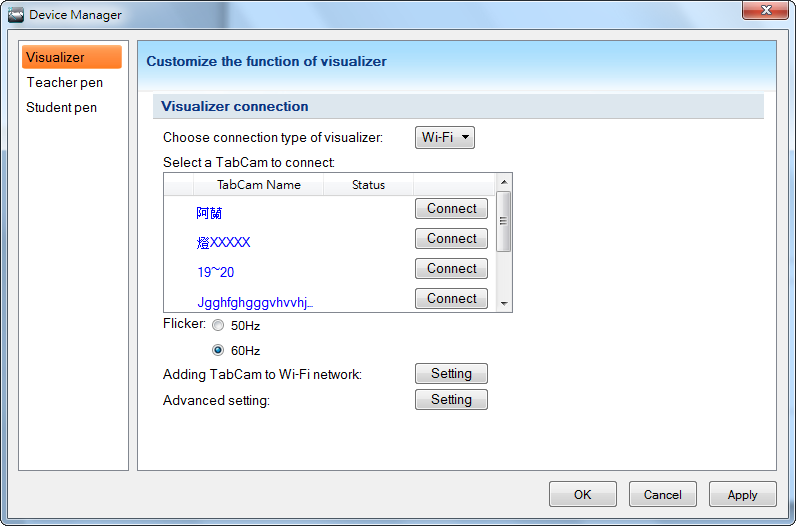
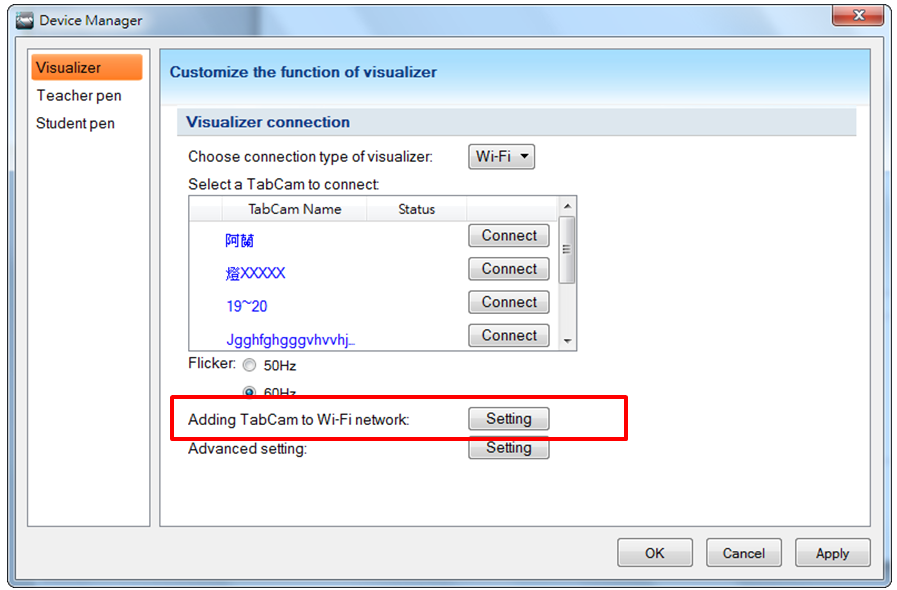
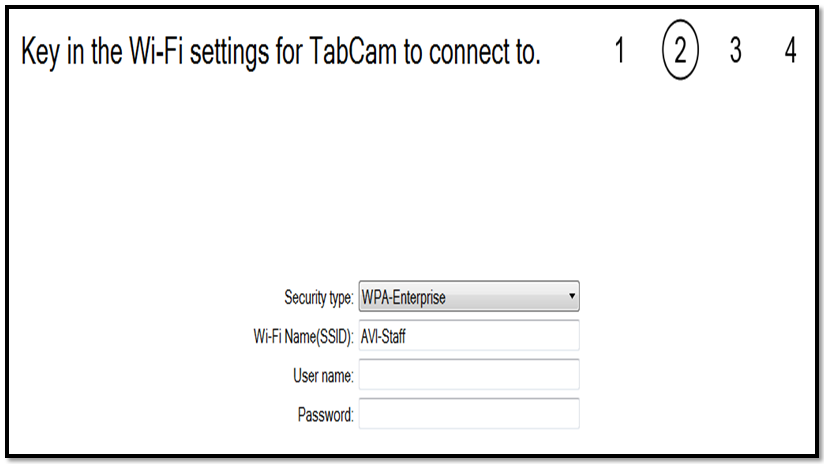
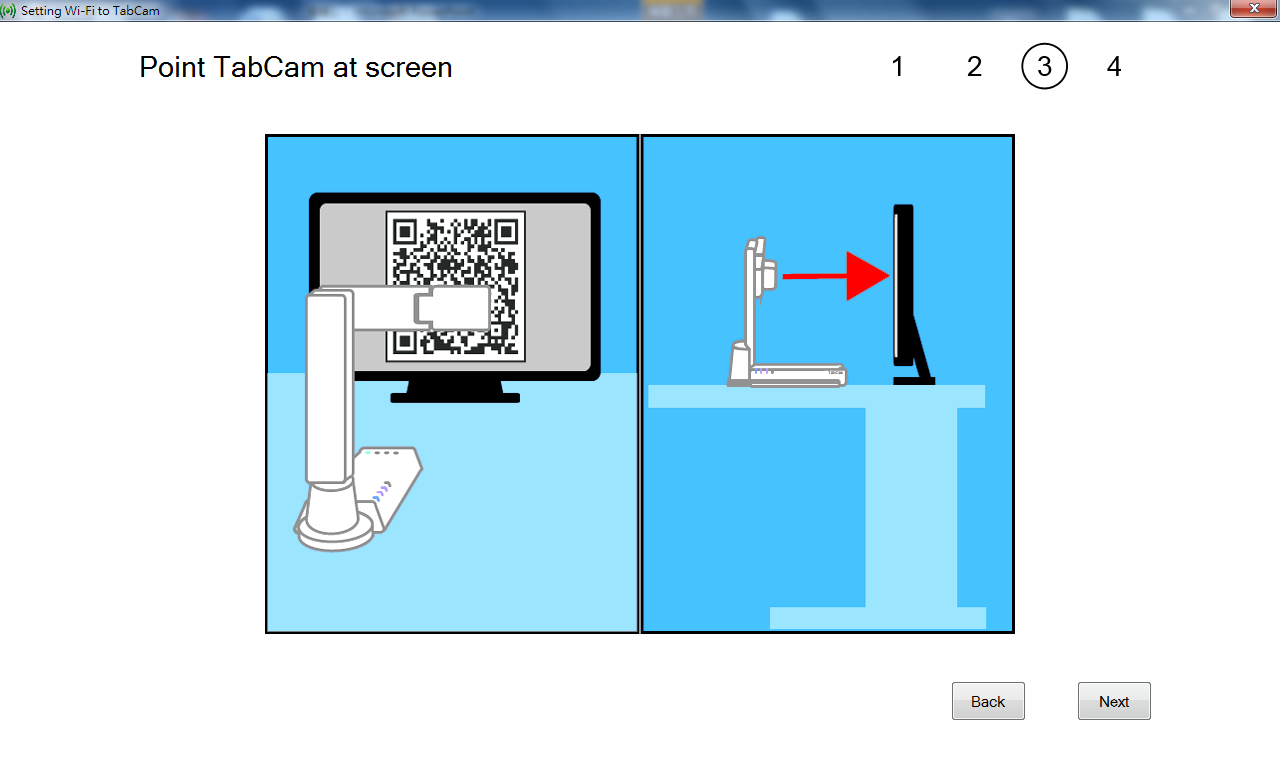
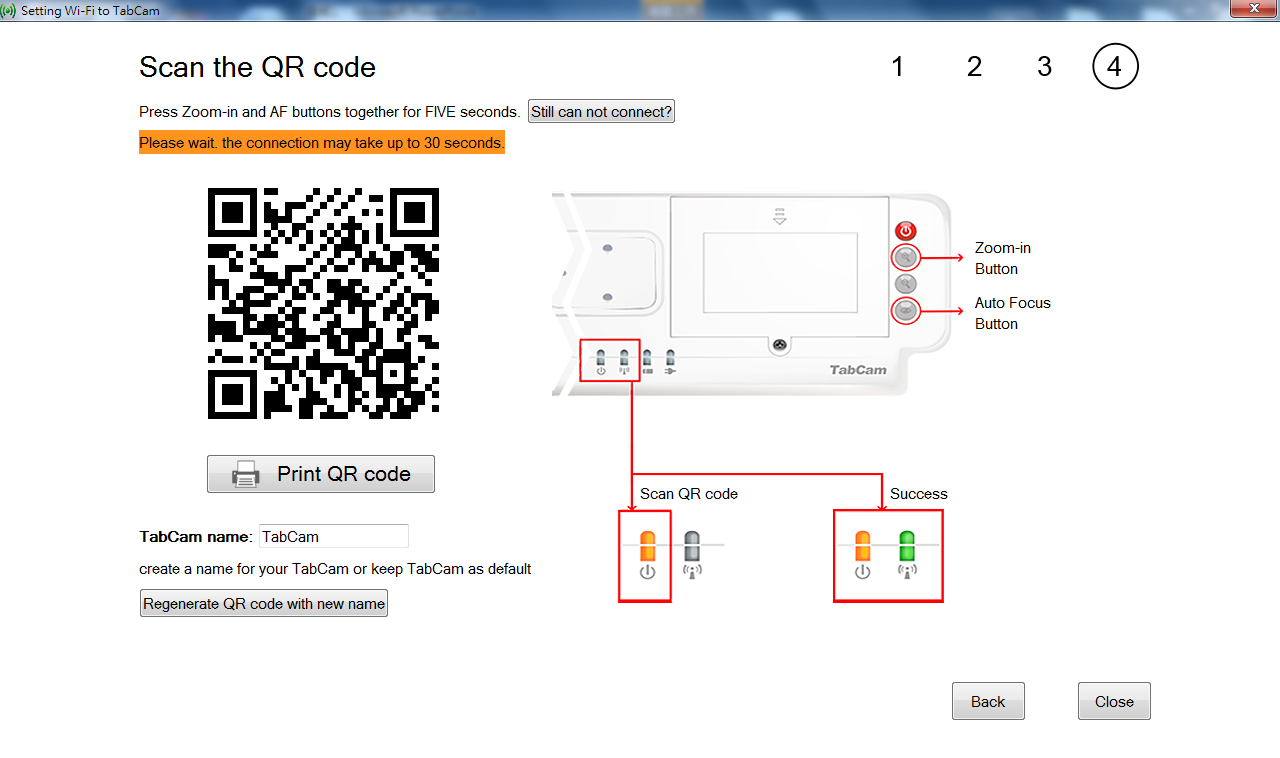
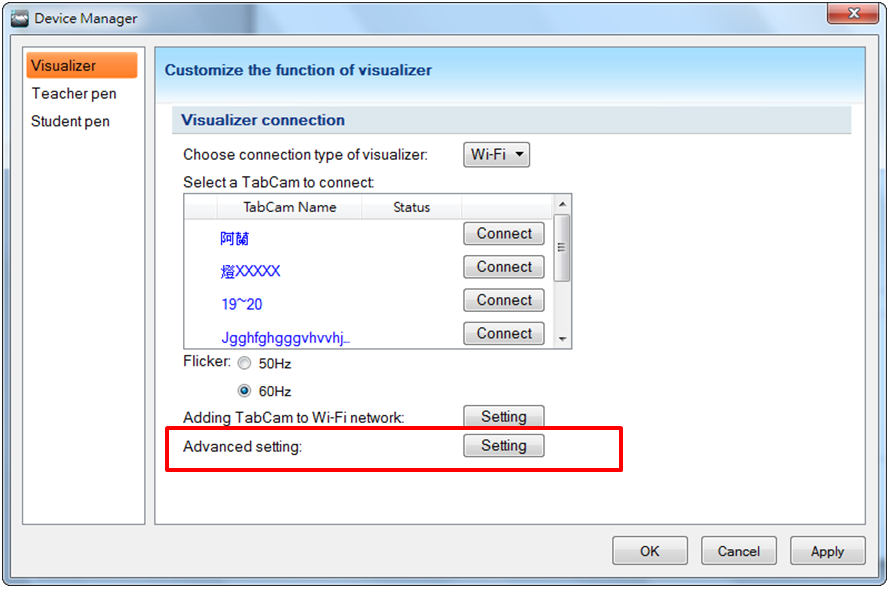
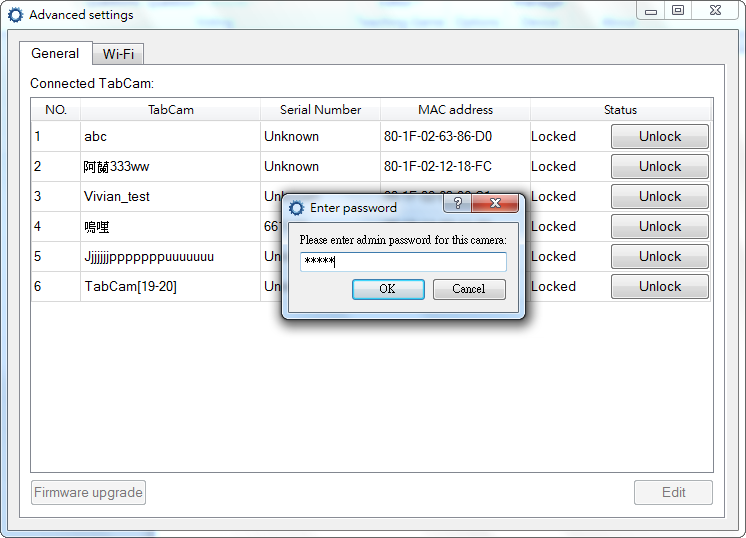
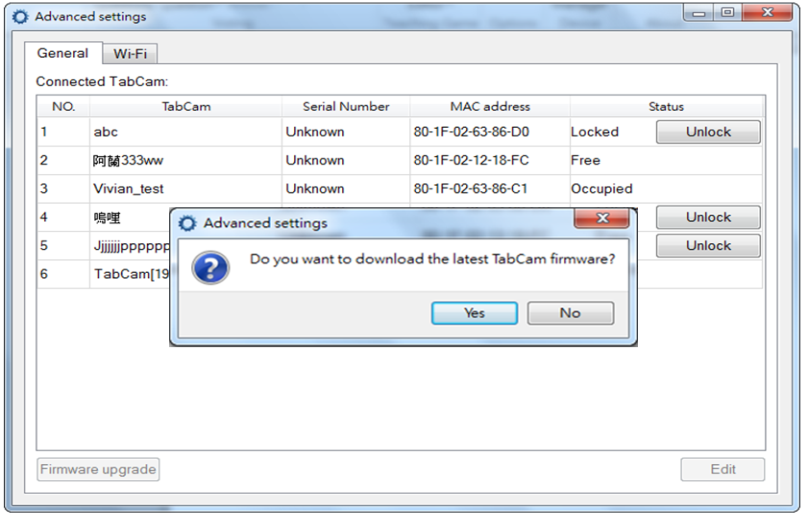
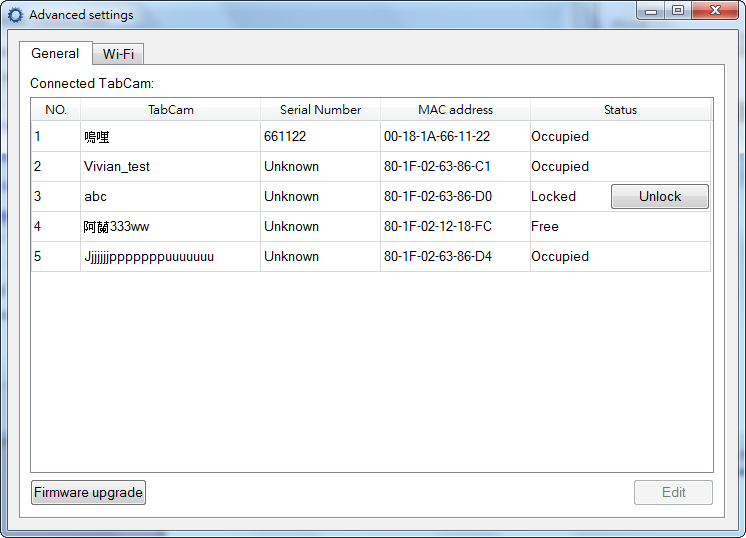
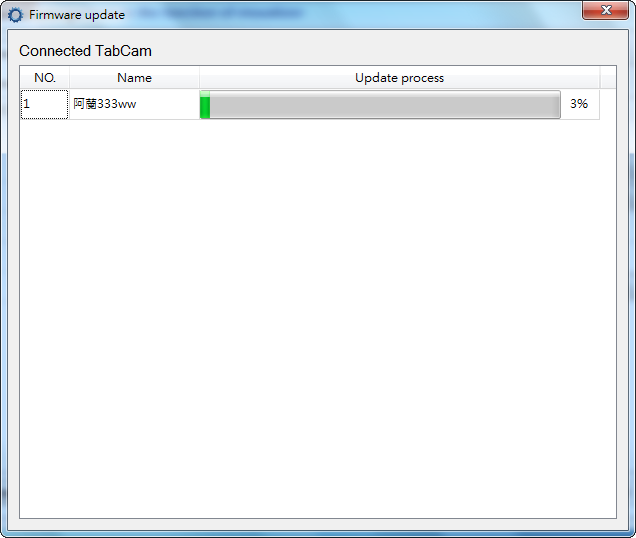
In Device Manager dialog box, you can change the setting of the TabCam by changing type of visualizer to Wi-Fi.
How-to :
 To set up TabCam using the QR Code
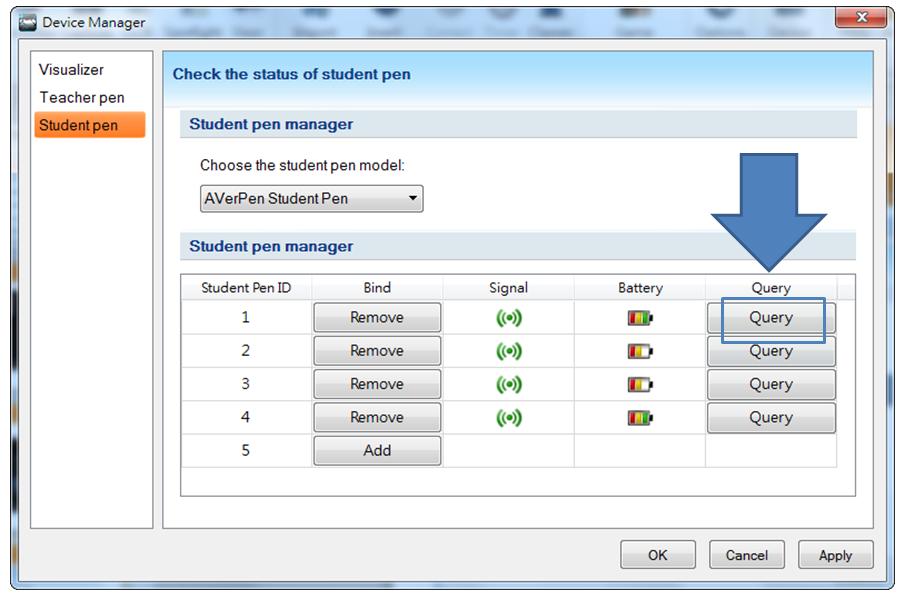
The pens are already bound by default from the factory. To check, run A+ Plug-in for PowerPoint and in AVer ribbon, click Settings > Student device. Pick up and make sure all the student pens are awake. Wait for about 3 seconds. In the table, the student pen signal indicator shows which pens are successfully bonded.
To identify the pen ID with the student pen, press query. The pen button will light up. Use the supplied sticker and mark the pen ID. Then stick it at the back of student pen. Do this step for all the student pens until you have identified them all.